Table of Contents
You plug your phone in at night, and by morning, the battery is dead. Or maybe the touchscreen freezes every time you open a specific app. Sometimes, you just pre-ordered the newest model and your current device is going straight to a buyer on eBay.
You need a clean slate.
Wiping a device feels permanent and a little scary. You have years of photos, messages, and saved passwords sitting on that flash memory. Hitting a button to delete everything on your iphone goes against every digital survival instinct you have.
But a proper wipe is the only way to fix deeply rooted software bugs or protect your privacy before handing the hardware to a stranger. It completely scrubs your personal footprint.
This manual gives you the exact steps. You will learn how to factory reset iphone models of all ages, bypass forgotten passcodes, and guarantee your private data stays out of the wrong hands.
Understanding the Different Reset Options
Apple throws around several terms for rebooting and wiping devices. If you don’t know the difference, you might accidentally delete your family photos when you just wanted to fix a frozen screen.
Let’s clear up the confusion right now. Understanding the different reset functions is the only way to avoid a digital disaster.
A standard restart is just turning your phone off and turning it back on. You do this when your cell service drops or an app gets glitchy. You hold the side button, slide the power off switch, and wait a minute. You lose zero data.
A hard reset iphone action—also known as a force restart—is a physical override. You use this when the iphone screen is completely frozen and ignores your taps. You use a specific combination of physical button presses to cut power to the processor. The iphone will restart abruptly. Again, this does not delete any of your data on your iphone.
An actual factory reset is the point of no return.
Performing a full factory reset erases the storage drive entirely. It deletes your operating system, reinstalls a fresh copy of iOS, and wipes your encryption keys. When the factory reset is done, the device powers up looking for a language selection, exactly like your iphone did on the day you bought it.
Why Perform a Factory Reset on iPhone?
You generally only perform a complete factory reset for two reasons.
First, you are selling or trading in your iphone. You absolutely cannot sell your iphone with your data still on it. Simply logging out of your email isn’t enough. A factory reset will erase your credit cards from Apple Pay, sign you out of iCloud, and make your old files unrecoverable.
Second, your software is corrupted. Over several years, system updates leave behind messy, fragmented code. If your phone suffers from chronic crashing, terrible battery life, or mysterious freezing, a complete wipe often cures it.

The Mandatory Pre-Reset Checklist
You cannot undo a factory reset using magic software. Once you confirm the action, your local files are gone permanently.
You must prepare your device before you touch the reset menu. Skipping these steps usually results in lost text messages, missing contacts, or an unusable phone.
First, check your battery life. Make sure your iphone has at least a 50% charge, or just keep it plugged into a wall outlet during the entire reset process. If the battery dies halfway through a system wipe, it can corrupt the operating system completely.
Next, unpair your Apple Watch if you own one. Unpairing forces the watch to immediately back up its latest health data and custom faces directly to your phone. If you wipe the phone first, you lose your recent Apple Watch data.
Back Up Your iPhone Properly
The single most important step is to back up your data. You want a perfect copy of your digital life ready to load onto a new iphone.
You have two reliable methods: an iCloud backup or a local computer backup.
To use iCloud, open the Settings app on your iphone. Tap your name at the very top. Tap iCloud, then select iCloud Backup. Hit the button that says “Back Up Now.”
Wait until the progress bar vanishes. Do not leave your house or disconnect from Wi-Fi until it finishes. If you don’t have enough iCloud storage, Apple now provides free temporary cloud storage for 21 days when you buy a new device. You can access this through the settings menu.
If you prefer physical backups, connect your iphone to your computer with a cable. If you use a Mac, open Finder. If you use a PC, open the Apple Devices app or iTunes.
Select your phone in the sidebar. Choose the option to back up all data on your iphone to your Mac or PC. Check the box labeled “Encrypt local backup.” If you skip the encryption box, your backup will not save your account passwords or Health app data. Click the backup button and wait.
How to Factory Reset iPhone From the Settings Menu
If your phone screen works and you know your passcode, you have the easiest path forward. Apple built the wipe tools directly into the main software menu.
You do not need a computer for this method. You just need a Wi-Fi connection and your Apple ID login details.
Here is exactly how to factory reset iphone directly from the settings menu:
- Open the Settings app on your iphone.
- Scroll down and tap General.
- Scroll to the very bottom of the General page and tap Transfer or Reset iPhone.
- Tap Erase All Content and Settings at the bottom of the screen.
Do not tap the button that just says “Reset.” That option opens a smaller menu for minor fixes, like resetting your network settings or your keyboard layout. You want the option that explicitly says it will erase all content and settings.
Entering Passwords and Confirming the Wipe
Your screen will now display a summary of everything it plans to delete. This list includes your Apple ID, Find My activation lock, downloaded apps, and Apple Wallet cards. Tap Continue.
The phone will ask you to enter your iphone passcode. This is the simple four or six-digit PIN you use to unlock your screen dozens of times a day.
Next, the system will prompt you to enter your Apple ID password to confirm. This step is critical. Entering your Apple account password turns off Activation Lock and disables Find My iPhone. It signals to Apple’s servers that you are intentionally abandoning the device.
Once you type the password, hit the final confirmation button to erase your iphone. The screen goes black, a white Apple logo appears, and a progress bar slowly fills up. The factory reset is done when the iphone restarts and displays the word “Hello” in various languages.
How to Factory Reset an iPhone Without a Password
Sometimes you find an old phone in a desk drawer and have absolutely no memory of the passcode. Or maybe you changed your passcode late at night and woke up with a blank mind.
If you are locked out of your iphone, you cannot open the Settings app. The standard wipe method is useless to you.
You need to know how to factory reset an iphone without the screen passcode. To do this, you must bypass the iOS software entirely by putting the hardware into Recovery Mode. This allows a computer to wipe the drive and install a fresh operating system.
The Recovery Mode Method
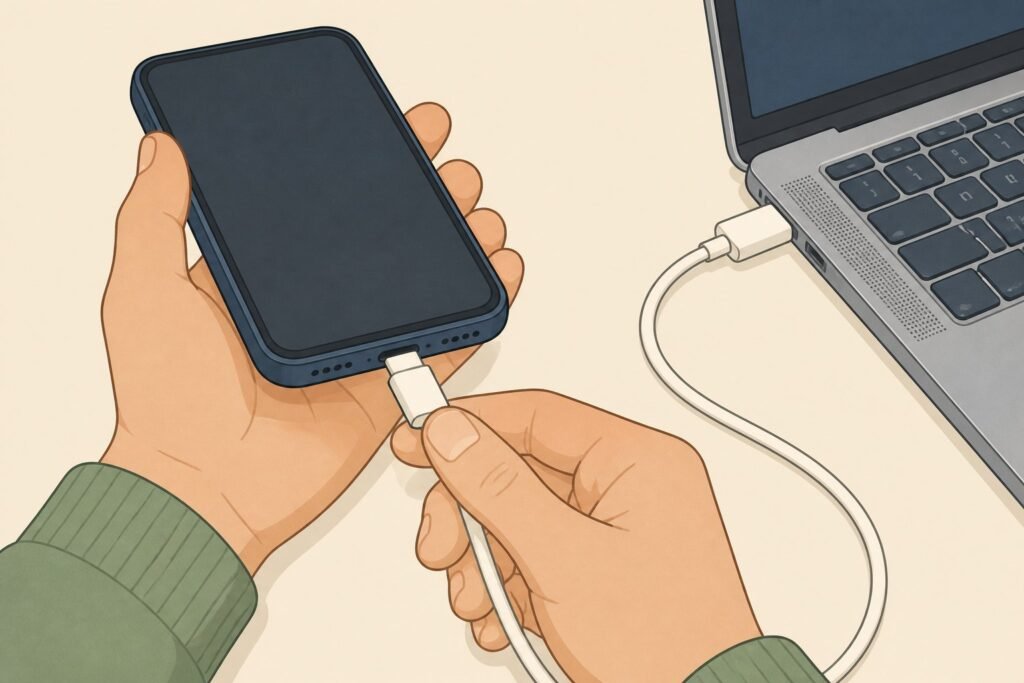
You will need a Mac or a Windows PC and a compatible charging cable. If you do not own a computer, you will need to borrow one from a friend or visit an Apple Store.
First, plug the cable into your computer, but do not connect the iphone just yet. Turn your iphone completely off.
Now, you have to use specific button combinations depending on your iphone model. You will hold a specific button down while you plug the cable into the phone. Do not let go of the button until you see the Recovery Mode screen—a picture of a cable pointing toward a computer icon.
Here are the button combinations:
- iPhone 8, iPhone X, 11, 12, 13, 14, and 15: You use the side button (the power button). Hold the side button down while you connect your iphone to the computer. Keep holding it. The Apple logo will appear. Keep holding it until the recovery screen pops up.
- iPhone 7 and 7 Plus: You use the volume down button. Hold it firmly while connecting the cable. Keep holding until you see the recovery screen.
- iPhone 6s or earlier: You use the physical Home button. Hold it down, plug in the cable, and wait for the recovery screen.
Executing the Wipe on Your Computer
Once your phone displays the Recovery Mode screen, turn your attention to your computer.
If you are on a Mac, open Finder and click on your iphone in the sidebar. If you are on a PC, open iTunes or the Apple Devices app.
A pop-up alert will immediately appear on your screen. It will tell you there is a problem with the iphone that requires it to be updated or restored.
Click the button that says Restore.
Your computer will now download the newest version of iOS directly from Apple. This download can take ten to thirty minutes depending on your internet connection.
If the download takes longer than fifteen minutes, your iphone will automatically exit Recovery Mode and turn back on. If that happens, let the computer finish downloading the software. Once the download completes, turn the phone off and repeat the button-holding process to get back into Recovery Mode.
Once the software is ready, the computer will completely wipe the device and restore the iphone to factory settings. You have successfully managed to reset a locked iphone without a passcode.

Erasing a Lost or Stolen iPhone Using iCloud
If you drop your phone in a lake, leave it in a taxi, or have it stolen, you cannot use the settings app or a computer cable. You lose physical access to the device.
But as long as the phone has battery power and connects to a cellular or Wi-Fi network, you can still factory reset your iphone remotely.
This method protects your bank apps, personal emails, and private photos from whoever finds your device. You execute this wipe using the Find My network.
The Remote Wipe Process
Grab any available device—a friend’s phone, an iPad, or a laptop. Open a web browser and go to iCloud.com/find.
Log in using your Apple ID email and password. If you have two-factor authentication turned on, you might run into trouble if your only trusted device is the phone you just lost. If that happens, look for the quick access “Find Devices” button at the bottom of the login screen, which bypasses the two-factor code requirement just for locating and wiping devices.
Once you are looking at the map interface:
- Click on All Devices at the top of the screen.
- Select your missing iphone from the drop-down list.
- A menu box will appear showing the phone’s battery level and location. Click Erase iPhone.
- Follow the prompts. The system will ask you for your Apple ID password to confirm the decision.
The moment you authorize the wipe, Apple sends a kill signal through the network. If the lost phone is currently powered on and connected to the internet, it will instantly erase your iphone. The screen will go black and wipe the drive in seconds.
If the thief turned the phone off, the wipe command sits in a queue. The absolute split-second that phone powers on and catches a cellular signal, it executes the command and deletes your data.
Understanding Activation Lock Before Selling
People mess up the selling process all the time. They think a factory reset on your iphone means the phone is completely ready for a new owner.
It depends on exactly how you wiped it.
Apple uses a powerful anti-theft system called Activation Lock. It ties the physical hardware of your iphone to your specific Apple ID. If a thief steals your phone and uses a computer to force a reset via Recovery Mode, the phone wakes up and immediately demands your Apple ID password. The phone is effectively bricked until that password is typed in.
If you plan on trading in your iphone or selling it to a private buyer, you have to turn this lock off.
If you use the standard Settings menu method to reset your device, the system asks for your Apple ID password before the wipe begins. Doing this correctly removes the Activation Lock. You are safe to sell the phone.
However, if you used a computer to reset a locked iphone because you forgot the passcode, the Activation Lock is still active.
You must remove it manually. Go to iCloud.com/find on a computer, log in, click on the specific iphone, and select the option to Remove from Account. This severs the digital tether. The next person who buys the device will now be able to set up your iphone normally.
Troubleshooting a Stuck Reset Process
Technology fails. Sometimes you do everything right, but the reset process hits a wall.
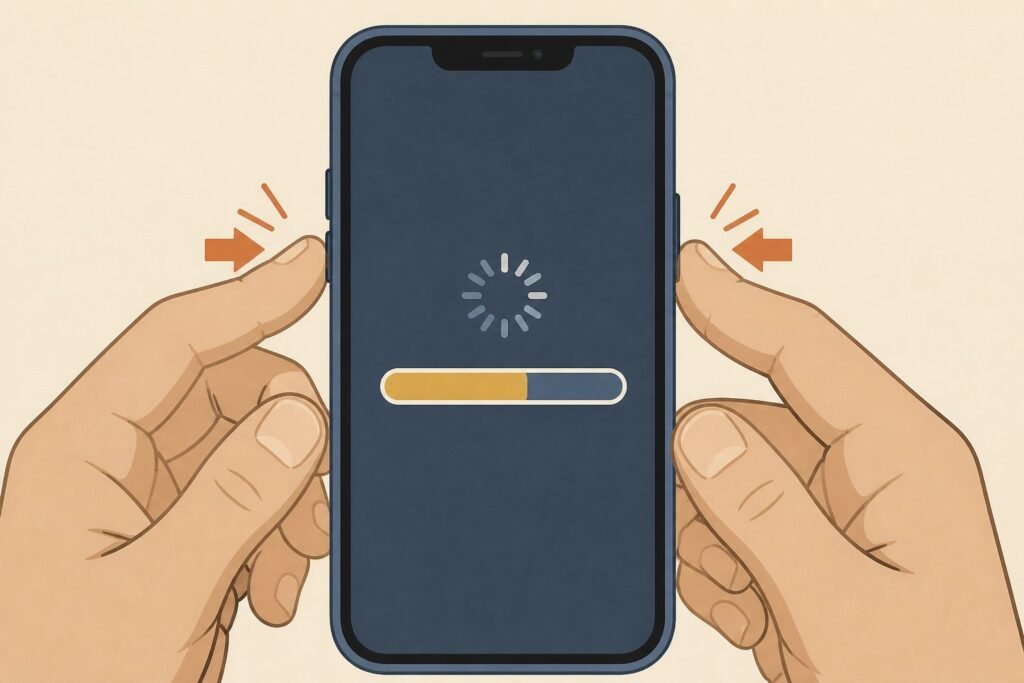
The most common issue is a frozen progress bar. You start the wipe, the Apple logo appears, and the little bar underneath it fills up halfway and stops. You wait an hour, and it hasn’t moved a single pixel. Your iphone is stuck.
Do not panic. You haven’t ruined the phone. You just need to interrupt the frozen software cycle.
You need to hard reset an iphone to break it out of the freeze. You force restart an iphone by manually cutting the power via the physical buttons.
For an iPhone 8 or newer, quickly press the volume up button, quickly press the volume down button, and then press and hold the side power button. Hold it for about ten to fifteen seconds until the screen goes completely black and the Apple logo reappears.
For an iPhone 7, hold the volume down button and the side button simultaneously until the logo resets.
Usually, forcing a hard reset will kick the processor back into gear, and the factory reset will resume and finish normally.
If the phone reboots and goes straight back to a frozen progress bar, your iOS files are deeply corrupted. You must connect the iphone to a computer and use the Recovery Mode method outlined earlier in this guide to push a brand-new copy of the operating system onto the device.
Moving Forward With a Clean Device
Wiping a smartphone feels like performing digital surgery. It requires preparation, a few specific steps, and a little bit of patience.
Whether you used the internal settings menu to prep a device for sale, bypassed a forgotten passcode with a computer, or sent a remote wipe command to a stolen phone, you now know how to factory reset iphone models safely and effectively.
When that clean “Hello” screen pops up, your job is done.
If you are keeping the device, you can start the setup process. Connect to Wi-Fi, sign into your Apple ID, and choose the option to restore your backup from iCloud or your computer. Within an hour, all your apps, photos, and messages will populate back onto the screen, but the buggy junk files will be gone. Your old phone will feel snappy and responsive again.
If you are selling it, just press the power button, turn the phone off, and put it in the shipping box. You can hand it over with total confidence that your private life remains exactly that—private.