Table of Contents
You sit down at your desk, press the power button, and wait. You go grab a coffee, check your phone, and sit back down, but your screen is still loading. When the desktop finally appears, clicking on your web browser turns your cursor into a spinning wheel. Working on a machine that takes ten seconds just to open a single document is agonizing.
A slow computer kills your momentum. You might think your hardware is dying and you need to spend a thousand dollars on a brand-new setup. That is rarely the case.
Most of the time, the software is just suffocating under years of digital clutter and unoptimized settings. A perfectly capable machine can grind to a halt because of hidden background apps or a full hard drive. You don’t need a degree in IT to understand why your system is lagging. You just need to know which settings to tweak.
Here is exactly how to fix a slow computer, clear out the hidden junk, and get your system running fast and smoothly again.
The Most Obvious Fix: Restart Your Computer
Have you turned it off and on again? It sounds like a lazy tech support joke, but a simple reboot is often the fastest way to fix a slow computer.
Many people never actually turn their machines off. When you close your laptop lid, the computer just goes to sleep. It keeps your current session, all your open apps, and all your system errors actively loaded in the computer ram. Over several days or weeks, background programs leak memory. They claim system resources and never give them back, causing your pc to slow down drastically.
You have to manually restart your computer to clear the slate.
Click the Start menu, hit the power icon, and select Restart. Do not just click “Shut down.” Modern versions of Windows use a feature called “Fast Startup.” When you click shut down, Windows actually saves the current system state to your drive so it can boot faster next time. This means it saves the bugs, too. Choosing the restart option forces the operating system to completely dump the memory and start fresh.
Open Task Manager to Hunt Down Resource Hogs
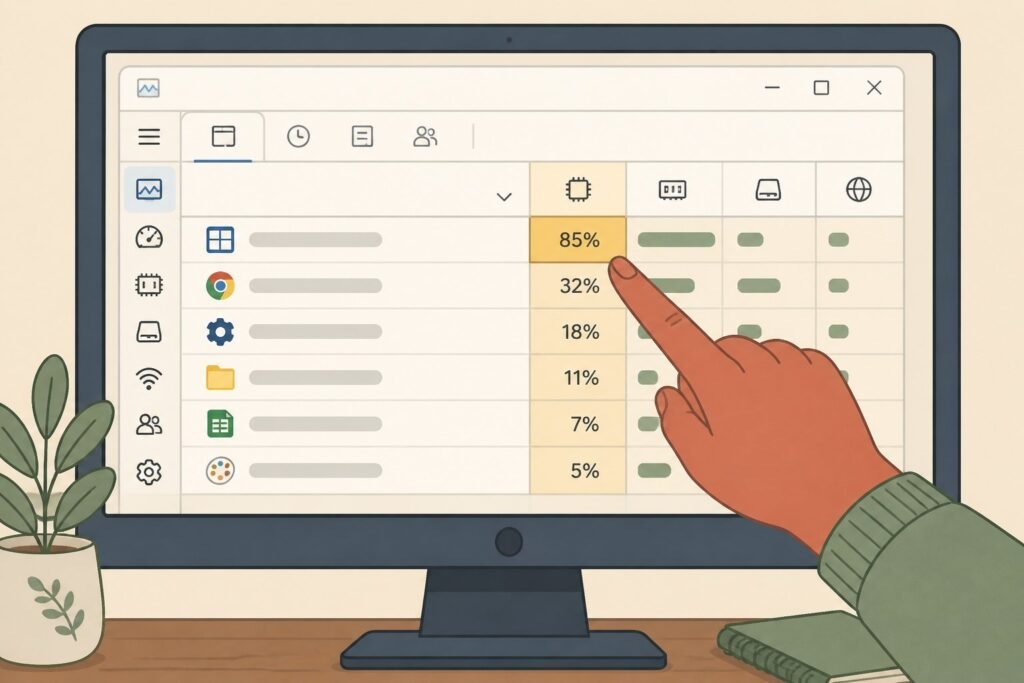
If a restart doesn’t solve the issue, you need to see exactly what is dragging your pc performance down. Windows provides a built-in diagnostic screen that shows you where every ounce of your processing power is going.
Press Ctrl + Shift + Esc on your keyboard at the same time. This shortcut instantly opens the Task Manager. If you only see a tiny window with a few apps listed, click “More details” at the bottom to expand the full view.
Look at the columns labeled CPU and Memory. These represent your processor and your computer ram. If you see your CPU usage constantly sitting above 90%, your machine is working as hard as it possibly can.
Click the word “Memory” at the top of the column to sort the list by which program is eating the most RAM. Web browsers are notorious for this. If you have forty tabs open in Google Chrome, it will consume gigabytes of memory and cause your computer or laptop to run slow. Find the app causing the problem, right-click its name, and select End Task to force it to close.
Disable Heavy Startup Apps to Fix a Slow Boot
Software developers want you to use their products constantly. To ensure you do, they design their programs to launch automatically the second you turn on your windows pc.
If you have ten different apps trying to open simultaneously during startup, you will experience a terribly slow boot. Programs like Spotify, Microsoft Teams, and game launchers will run in the background indefinitely. They silently consume your computer resources even when you aren’t looking at them.
You need to cut them off at the source.
Stay inside the Task Manager. If you are using Windows 10, click on the Startup tab across the top. On Windows 11, click the icon on the left sidebar that looks like a speedometer.
You will see a list of every program that has permission to launch at boot. Look at the column labeled “Startup impact.” Find the heavy hitters you don’t need immediately, right-click them, and click Disable. You aren’t deleting the app; you are just forcing it to wait until you actually click its icon.
Free Up Disk Space Using Windows Cleanup Tools
Your operating system needs empty breathing room to function. If your main storage drive is packed full of photos, games, and old downloads, your computer will suffer from terrible slow performance.
Windows uses a chunk of empty drive space as a “pagefile.” When your physical RAM fills up, the system temporarily parks excess data on your hard drive. If your disk space is entirely full, the system has nowhere to put this data. The computer may freeze entirely.
As a general rule, you want to keep at least 15% of your disk completely empty. To reclaim lost space, you should run a disk cleanup.
Type Disk Cleanup into your Windows search bar and open the app. Select your main drive (usually C:) and hit OK. The tool calculates how much space you can save. Check the boxes next to Temporary files, Thumbnails, and Recycle Bin.
To dig deeper, click Clean up system files. This allows the tool to hunt down massive, hidden files like old Windows update logs. Deleting these temporary files can easily free up 10GB to 20GB of disk space in a matter of minutes.

Swap Your Old Hard Drive for a Lightning-Fast SSD
Sometimes no amount of software tweaking will fix your problem. If your machine is more than five years old, you might be running your operating system on a mechanical hard disk drive (HDD).
An older hdd relies on a literal metal needle reading data off a spinning magnetic platter. It is ancient technology. Because it relies on moving physical parts, it creates a massive bottleneck for your entire system. It doesn’t matter how fast your processor is if it has to wait for a physical disk to spin up.
The single best way to improve your computer performance is to upgrade to a Solid State Drive (SSD).
An ssd uses flash memory, exactly like your smartphone. There are no moving parts. Upgrading from an HDD to an SSD will make your computer boot in seconds instead of minutes. Programs will open instantly. If you want a guaranteed way to speed up your pc, swapping the drive is the answer.
Scan for Malware Dragging Down Your PC Performance
If your computer suddenly starts running slowly out of nowhere, you might have a malicious guest.
Modern malware rarely deletes your files or locks your screen with a scary skull logo. Instead, hackers use stealthy viruses like cryptocurrency miners. These hidden scripts hijack your CPU and run your processor at maximum capacity to mine digital currency for someone else. This will immediately slow down your computer to a crawl.
You need to scan your system, but you do not need to buy heavy, expensive antivirus software. Many third-party security suites are so bloated that they actually slow down your system even more.
Microsoft includes an excellent, lightweight security tool built right into the operating system.
Type Windows Security into your search bar and open the app. Click on Virus & threat protection. Do not just click the quick scan button. Instead, click Scan options, select Full scan, and hit the button to start. A full system scan checks every single file on your disk. It takes time, but it will aggressively root out any background processes causing your pc to run slow.
[IMAGE #4]
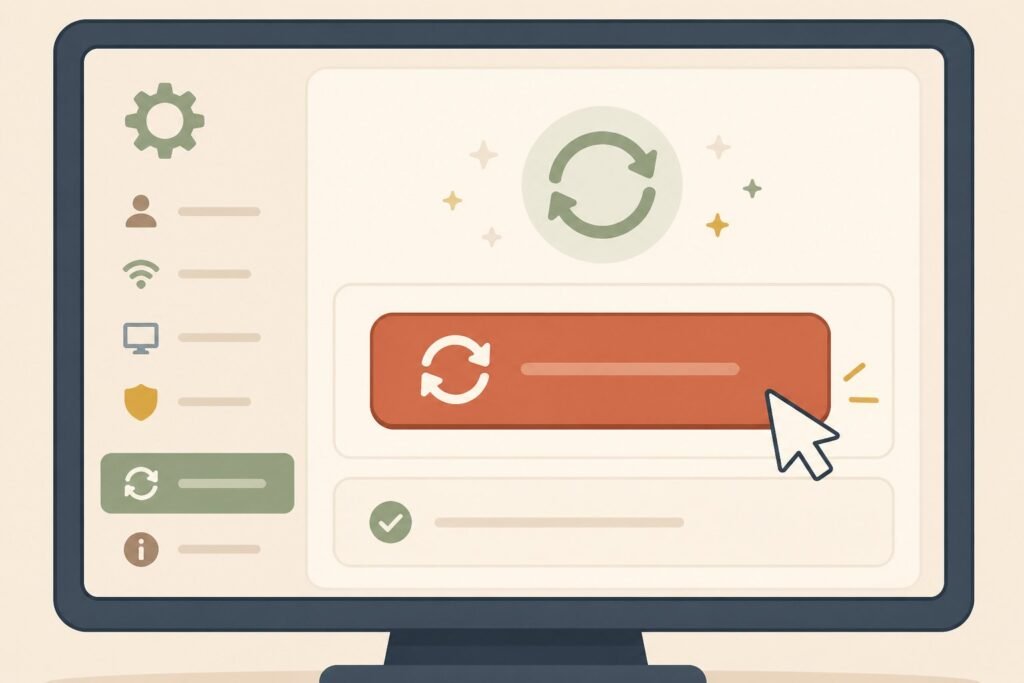
Caption: Checking for system updates in the Windows settings menu.
Generation prompt: “WikiHow-style illustration, clean line art with soft color fills, friendly instructional style, flat illustration with minimal shading, light beige background (#EFE4CC), no text in image, showing a close-up of a settings menu on a screen with a large ‘Check for updates’ button being clicked by a mouse cursor, using terracotta (#C75D45), sage green (#8FA083), warm cream (#F4EBD9), dusty navy (#3D4B5C), mustard yellow (#D9A441), and soft browns (#8B6F47).”
Force a Windows Update to Patch Core System Bugs
It is tempting to ignore system updates. You are busy working, the notification pops up, and you immediately click “Remind me tomorrow.” Doing this for months on end is a massive mistake.
Operating systems are incredibly complex. They ship with bugs. Sometimes a specific line of code conflicts with a piece of hardware, causing a memory leak or a processor spike. Microsoft constantly releases patches specifically designed to fix bugs and repair these exact performance issues.
If your slow windows computer is missing six months’ worth of patches, it is not going to run well.
Open your settings app and look for Windows Update. Click the button to check for updates manually. Let the system download any pending files. Also, look for a section labeled “Optional updates.” This is where you will find driver updates for your specific hardware, like your graphics card or Wi-Fi adapter. Install these to keep your machine running fast.
Tweak Your Operating System’s Visual Effects
Windows looks nice right out of the box. It features smooth fading animations when you minimize windows, drop shadows under your folders, and translucent taskbars.
These visual flourishes are great if you have a powerful machine. However, if you are trying to extend the life of an older laptop, forcing the processor to render these animations causes stuttering and lag. Turning them off will make your computer run better immediately.
Type adjust the appearance into your search bar. Click the control panel result named Adjust the appearance and performance of Windows.
A menu will pop up with a long list of checkboxes. Select the option labeled Adjust for best performance. This instantly turns off all the unnecessary visual flair. The interface will look a little more basic, but your menus will snap open instantly.
Check Your Hardware for Overheating and Dust
Sometimes software isn’t the culprit at all. Your computer generates a massive amount of heat when it works. Internal fans exist to push that heat out of the case.
If you leave a desktop tower on the carpet, or use a laptop on your bed, those fans suck in dust, pet hair, and lint. Over a year or two, the internal cooling fins become completely blocked.
When heat cannot escape, the temperature inside the machine skyrockets. Modern processors are smart; if they detect they are getting too hot, they intentionally cut their own performance in half to avoid melting. This self-preservation mechanism is called thermal throttling.
If your laptop sounds like a jet engine and the keyboard is hot to the touch, thermal throttling is slowing you down. Turn the machine off, buy a can of compressed air, and blow the dust out of the exhaust vents. Restoring proper airflow is one of the most effective ways to improve your pc’s performance.
Reinstall Windows for a Complete Factory Reset
If you have tried everything on this list and your computer so slow issues persist, you have one final option. You need to wipe the slate clean.
Over five or six years, an operating system accumulates deep registry errors, conflicting drivers, and broken files that are impossible to find manually. To truly fix a slow computer, you can reinstall windows from scratch.
You do not need a disc or a USB drive to install windows anymore. The system handles it internally.
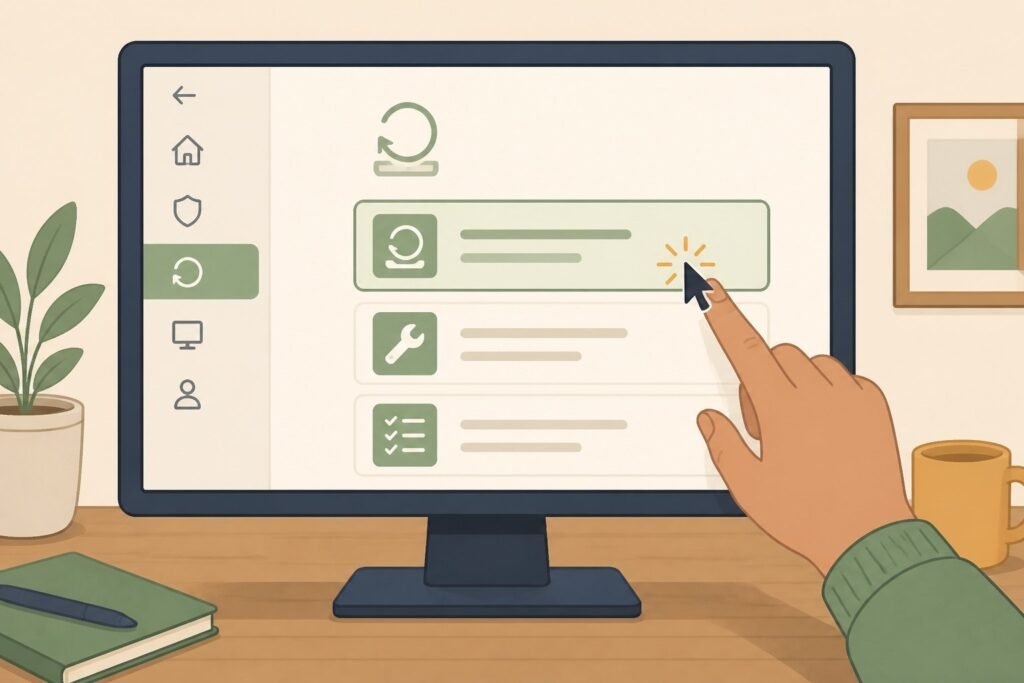
Open your Settings app, go to System, and click on Recovery. Look for the option that says Reset this PC and click the button to get started.
Windows gives you two choices. You can choose to “Keep my files,” which uninstalls all your apps and resets your settings while leaving your personal photos and documents completely untouched. Or, you can choose “Remove everything” for a totally fresh start.
Let the system run the reset process. It will restart your pc multiple times over an hour or two. When it finishes, your machine will feel exactly like it did the day you bought it.
Get Your PC Back to Peak Performance
You don’t have to tolerate a frustratingly slow computer. When you understand how background apps drain your memory and how a packed hard drive ruins your storage speeds, you take back control of your hardware.
Run through these 10 ways step by step. Start by opening your task manager to disable aggressive startup programs. Use the built-in cleanup tool to delete temporary files and free up disk space. If your machine is still struggling, check for malware and run your system updates.
Apply these fixes today. You will reclaim your lost speed and extend the lifespan of your machine for years to come.